
2.3.8. Demo: Try Running the Mastodon Bot!#
Choose Social Media Platform: Bluesky | Reddit | Discord | Mastodon | No Coding
Running this Jupyter Notebook#
This page is called a “Jupyter Notebook” which it is a text page that has runnable Python code in it.
In order to run the code, you can look for the rocket button at the top which will give you an option to “launch binder.”
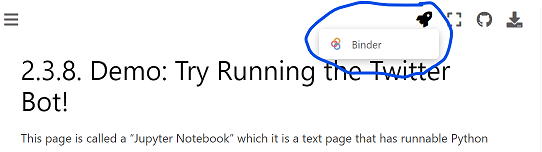
If you launch binder, it will take a while to load, but eventually show you a version of this Jupyter Notebook page in a code editor called Jupyter Lab.

In Jupyter Lab you can double click any section to edit it, and you can press the triangle “run” button to run the code (or display the text).
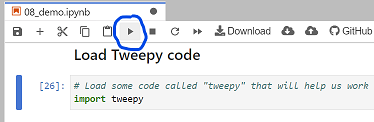
When the code runs, the little number to the left of the code block should change. There might also be some output from your action displayed below the code block.
So now you can go through the rest of this page and select and run each section of code.
Here is the bot code you can run!#
Our demo Mastodon bot code is below, broken up into different sections.
You can select each section of the code below and run it to see what it does.
By default this code uses a fake version of our Mastodon connection so it doesn”t connect to a real Mastodon account.
If you want to actually connect to your Mastodon account, you can put your Mastodon “access token” in the right code section below, and then when you run the code make sure to skip the code section that makes a fake Mastodon connection with “fake_mastodon”.
Step 1: Load Mastodon code#
# Load some code called "Mastodon" from a library called "mastodon" that will help us work with Mastodon
from mastodon import Mastodon
(Optional) Step 1b: Make a fake Mastodon connection with the fake_mastodon library#
For testing purposes, we”ve added this line of code, which loads a fake version of Mastodon, so it wont actually connect to Mastodon. If you want to try to actually connect to Mastodon, don’t run this line of code.
%run ../../fake_apis/fake_mastodon.ipynb
Step 2: Login to Mastodon#
To use this on your real Mastodon account, copy your mastodon “access token” into the code below, replacing our fake access token. (And if you use a different Mastodon instance, replace the api_base_url with the correct instance).
# Login to Mastodon
# TODO: put your access token below
mastodon = Mastodon(
    api_base_url = "https://mastodon.social",
    access_token = "m#5@_fake_access_token_$%Ds")
Step 3: Send a Post to Mastodon#
# Send a Mastodon post (a "toot")
# TODO: modify the text in the quotes below to change what this bot posts to Mastodon:
mastodon.toot("This post was made by a computer program!")
This post was made by a computer program!